Online Game Manual

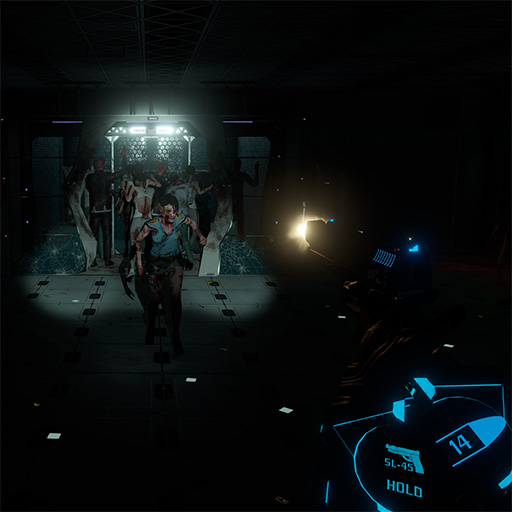
LIZ: Before the Plague is a story driven VR horror immersive experience with investigation and shooting gameplay dynamics.

One night, in a near future, a detective from Special Investigation Unit named Liz has to face a strange case that seems a common one… but it’s not. She has to respond to a distress call from a famous pharmaceutical company and investigate, collecting info and survive using her own tools.

Figure out what happened and solve the case.

Experience the future of the year 2138

Accompany Liz in a sci-fi Boston city, using new investigation and communication technologies in a world survived to an environmental apocalypse. An impressive company is your mission destination: visit its mysterious halls and depth discovering the truth that is hidden.

Controllers Mapping

Here you can find the actions mapping for the main supported motion controllers. Slide left or right to find your controller.

Index

Investigation Actions

  • A Button or Trigger
  • B Button
  • Grip Squeeze
  • Hit Analog Stick
  • Tilt and Hold Analog Stick

Shooting Actions

  • Trigger
  • Grip Squeeze
  • A Button (long press)

HTC VIVE

Investigation Actions

  •  Trackpad Press or Trigger
  •  Trackpad Long Press
  •  Grip
  •  Press Trackpad Edges
  •  Slide Finger on Trackpad

Shooting Actions

  •  Trigger
  •  Grip
  •  Trackpad Long Press

Oculus

Investigation Actions

  •  A Button or X Button or Trigger
  • B Button or Y Button
  •  Grip
  • Hit Analog Stick
  • Tilt and Hold Analog Stick

Shooting Actions

  •  Trigger
  •  Grip
  • A Button or X Button (long press)

Windows Mixed Reality

Investigation Actions

  • Trackpad Press or Trigger
  • Trackpad Long Press
  • Grip
  • Press Trackpad Edges
  • Slide Finger on Trackpad

Shooting Actions

  •  Trigger
  •  Grip
  • Trackpad Long Press

PDA Capabilities

The PDA is your main tool to interact with the environment and collect all the information you need to proceed with the game.
Let’s get in depth of all the features of you PDA, tool by tool!

Refer to the controllers mapping for the controller-specific keys.
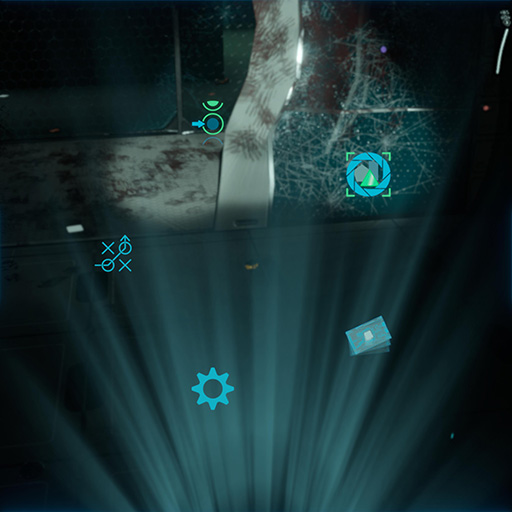
PDA Home

Allows you to access the different tools. Every new tool will be added to this screen.

First highlight a tool by sliding in its direction, then confirm to open it up.

Capabilities

  • Slide Action
  • Primary Action

Briefing Tool

Allows you to keep track of your objectives, showing you what you did and what you still have to do.

New objectives may be added by B-4 (your drone) while it briefs you. In that case you will see a + icon beside its text, accompanied by a notification sound. They may also be added silently during gameplay, even if B-4 doesn’t brief you.

Capabilities

  • Navigate Action
  • Cancel Action

Scanner Tool

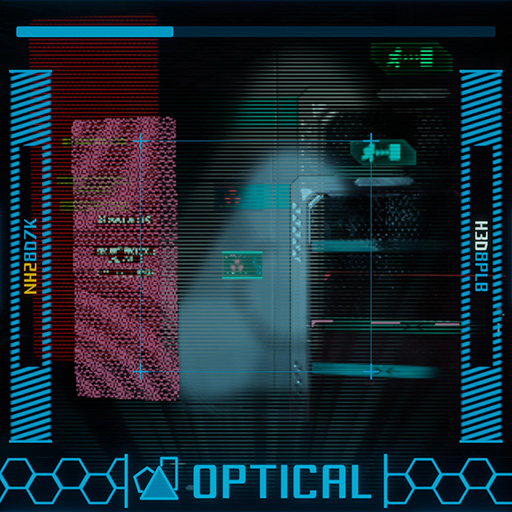
Allows you to analyze the environment and, sometimes, to interact with it.

By framing elements in the environment, the scanner recognizes shapes, biological materials and electronic components. When the scanner recognizes something, it highlights it. When multiple elements are recognized in the same view, only one is considered the main, the others are outlined but not highlighted.
When a framed element is highlighted you can scan it. This will produce different effects according to the nature of that element.

Capabilities

  • Primary Action
  • Secondary Action
  • Navigate Action
  • Cancel Action

Database Tool

Allows you to archive and read all the information you collected.

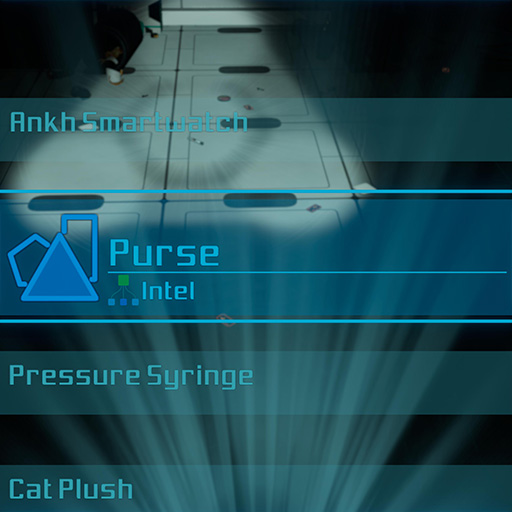
When you open the database tool, a list of all collected info will appear. You can navigate them or combine them.

Capabilities

  • Navigate Action
  • Primary Action
  • Secondary Action
  • Cancel Action

Database Tool - Details View

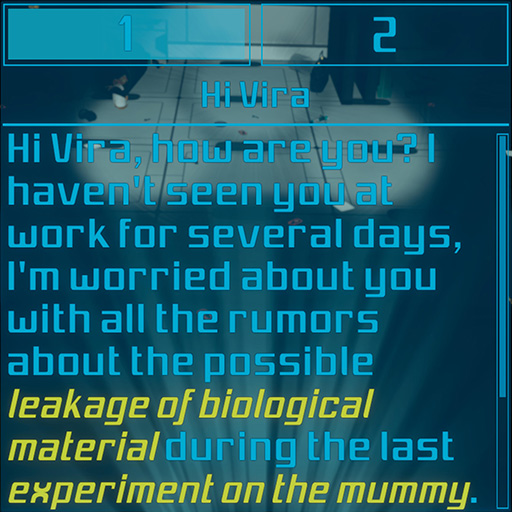
Allows you to read all the information about a selected element.

Selecting an info entry will open its own detail page. You can scroll the info up and down when the text exceeds the screen. Some entries have multiple information bound to them. In such cases you will see numbered tabs on the top, above the information name.

Capabilities

  • Navigate Action (Vertical)
  • Navigate Action (Horizontal)
  • Primary Action (if a model is available)
  • Cancel Action

Database Tool - 3D Model View

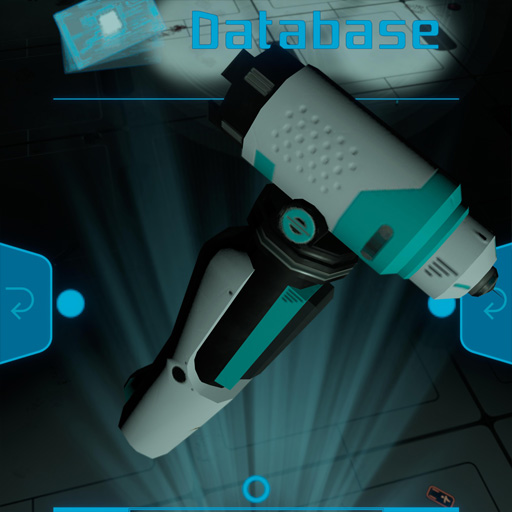
Allows you to archive and read all the information you collected.

Some info also have a 3D model associated with them. It’s important to notice the little 3D icon beside the information name, that indicates that a 3D model is available. Some 3D model has hidden features. If you find them, the detail page will contain and additional info box.

Capabilities

  • Slide Action
  • Secondary Action
  • Look at the feature for long enough
  • Cancel Action

T.E.A. Tool

Allows you to analyze the structural elements of the sourroundings and to interact with some of them.

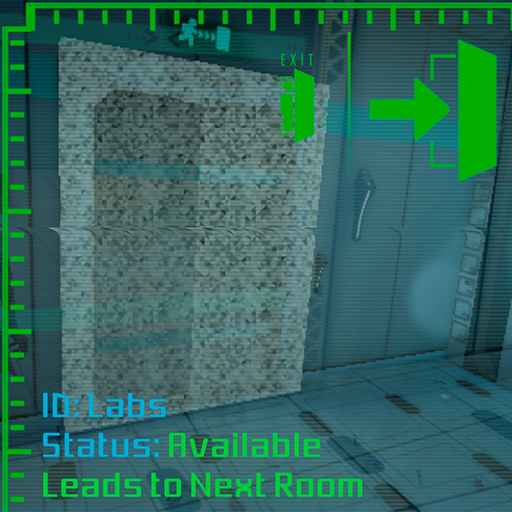
By framing elements in the surroundings, the T.E.A. (Tactical Environmental Analyzer) recognizes waypoints and functional elements of the building. When the T.E.A. recognizes something, it highlights it. When multiple elements are recognized in the same view, only one is considered the main, the others are outlined but not highlighted.
When a framed element is highlighted you can read its analysis. In some cases you can interact with the highlighted element and this will produce different effects according to the nature of element itself.

Capabilities

  • Primary Action
  • Cancel Action

Remote Tool

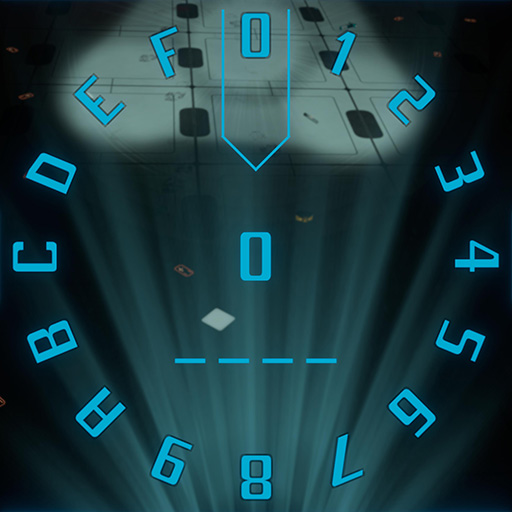
Allows you to remotely input passwords into electronical devices, if they can’t be automatically hacked. Just highlight the desired character in the upper part of the tool and add it to the buffer below it. Once you fill all the space, the password is fed to the remote device.

This tool pops up automatically when needed.

Capabilities

  • Slide Action
  • Primary Action
  • Cancel Action (if any character set)
  • Cancel Action (if no characters are set)

Codebreaker Tool

Allows you to manually hack electronical devices, Some devices are secure enough to resist the automatic hacking bu weak anough to hack them manually. Touch the right spots to break into the device.

This tool pops up automatically when needed.

Capabilities

  • Slide Action
  • Cancel Action

Drone Tool

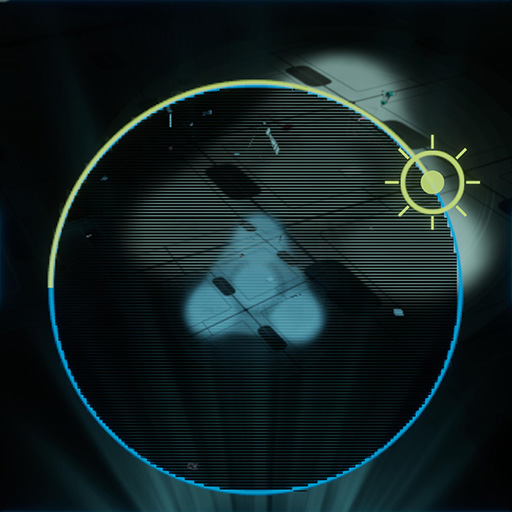
Allows you to control a few features of B-4 bound to its light, You can control the lens of its light to make it reach farther but with a narrower cone, or make it light a wider area but make the light decay nearby.

You can also turn the light on or off, at your will.

Capabilities

  • Slide Action (upper arc)
  • Primary Action
  • Cancel Action

Settings Tool

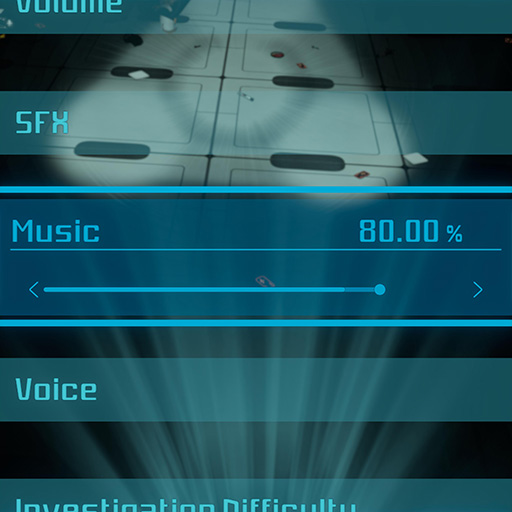
Allows you to access the different game settnigs. You can navigate the list of settings and change their values. Some lines are just “button”, they can’t be changed but they can be used (for instance the “back to menu” line, that allows you to leave the game and get back to the police station).

A tip for you: when you’re in the settings tool, the time displayed at the top of the PDA is the real time, and not Liz’ time!

Capabilities

  • Navigate Action (Vertical)
  • Navigate Action (Horizontal)
  • Primary Action
  • Cancel Action

Shooting

You will have to defend yourself if you want to make it out of Ankh Pharmatech. Use your weapon wisely.

Refer to the controllers mapping for the controller-specific keys.
Shoot

It’s a gun, you know how to use it: pull the trigger!

Capabilities

  • Primary Action
  • Cancel Action

Aim

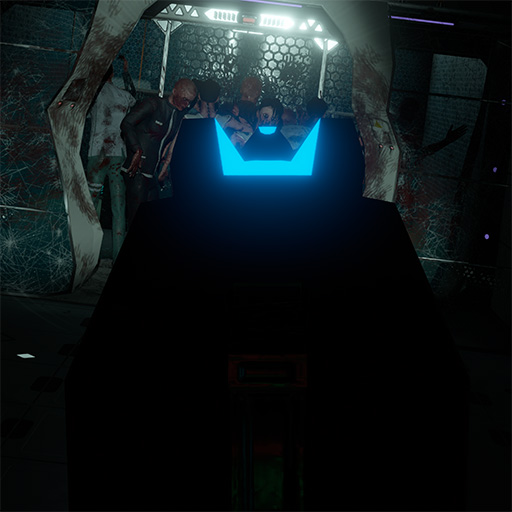
Aiming is the though part at first. Before you become a perfect gunslinger, taking your time to correctly aim like all noobs do is the right choice. The gun has a bright iron sight made of two parts, one is “U” shaped and the other is a dot. Align the gun to see the dot exactly in the center of the “U” and that’s it! You will get better soon!

Do you feel too rookie? Select the easy mode to enable the laser pointer!

Reload

Overview

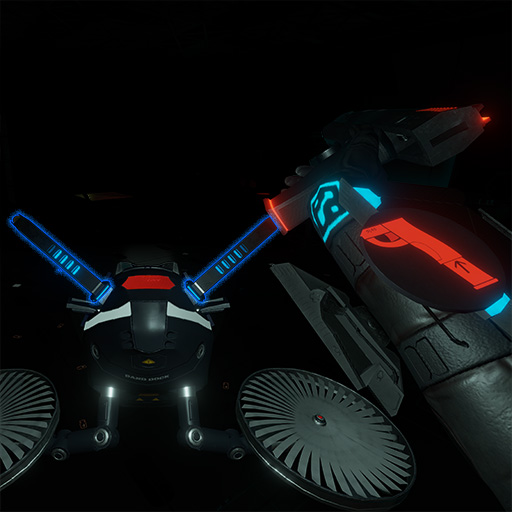
Did you think you’d just have to pull the trigger? You’re lucky that B-4 can craft ammo for you but you still have to decide the right moment to unload and reload. When you’re running out of ammo and you have a moment of calm, it is a good time to change the ammo magazine.

Reload is done in 3 steps:

  1. Unload your gun
  2. Wait for B-4 to fly down in front of you
  3. Align the gun’s handle to one of the magazines B-4 provides

Some tips:

  • Keep an eye at Liz’ wrist pad, it will display ammo count and reload hints! No ammo count in hard mode though…
  • The gun’s lights color has a meaning! Blue, you still have ammo; Yellow, you’re out of ammo; Red, no magazine loaded.

Some Strategy

What’s your target?

Choose wisely what you’re aiming at. Different body parts deal different amounts of damage. This is the more important the higher the game difficulty you choose! But lower damage isn’t necessarily bad, some side effects may come in if you hit a leg.

Pro Tip: No ammo? Enemies too close? No time to relaoad, and the game over is right there? Try to stun your enemies unloading a magazine on their head! It’ll give you just a little more time but it may be worth a new magazine!